 Deepshi
sync
backup
restore
cloud sync
cloud vault
local backup
data transfer
chat history
articles
device migration
encryption
data security
Sync & Backup Your Chats and Articles Across Devices
Deepshi TeamFebruary 26, 2026
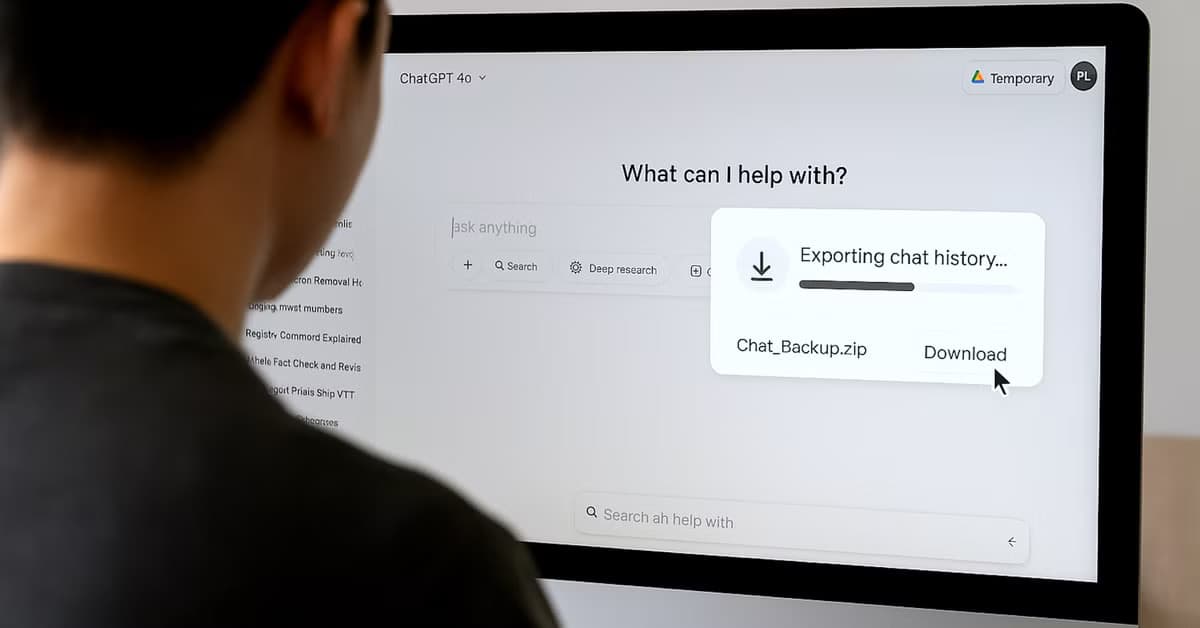
How to Sync & Backup Your Chats and Articles
Switching to a New Device?
When you log into Deepshi AI on a new device, you may see a message saying your data exists on another device. This is completely normal — your chats and articles are stored locally on each device you use.
To transfer your data, you can use Cloud Sync or Backup & Restore.
Cloud Sync
Cloud Sync allows you to securely upload your data and restore it on another device using a 6-digit recovery code.
Uploading Your Data
- Open the sidebar and tap your profile picture.
- Go to the "Data" tab.
- Tap "Sync to Cloud".
- Wait for the upload to complete.
- A 6-digit recovery code will appear on screen.
- Save this code somewhere safe — it is only shown once and you will need it to restore your data.
Restoring on Another Device
- Log into your account on the new device.
- Open the sidebar and tap your profile picture.
- Go to the "Data" tab.
- Tap "Accept sync".
- Enter your 6-digit recovery code.
- Your data will be restored.
What Gets Synced
- All chats and messages
- Articles
- Generated and uploaded images
- Characters
- Projects
- Preferences and settings
Good to Know
- Your data is encrypted before it leaves your device.
- The recovery code is required to restore your data.
- Syncing again will overwrite previously synced cloud data.
Backup & Restore (Local + Cloud Vault)
If you prefer full control over your backup files, you can use the Backup & Restore Chat History option in your profile section.
Creating a Backup (Download to Device)
- Open the sidebar.
- Tap your profile picture.
- Select "Backup & Restore Chat History".
- Choose a name for your backup.
- Set a password (minimum 8 characters, must include a letter and a number).
- Tap "Download backup".
- The encrypted backup file will be saved to your device.
This backup includes:
- Chats
- Articles
- Images
- Characters
- Projects
- Settings
Uploading to Deepshi Cloud Vault
- Open "Backup & Restore Chat History".
- Choose "Upload to Cloud Vault".
- Set your encryption password.
- Your backup will be securely stored in Deepshi Cloud Vault.
When restoring, your Cloud Vault backup will automatically appear for quick recovery.
Restoring a Backup
- Open the sidebar.
- Tap "Backup & Restore Chat History".
- Select "Restore backup".
- Upload your backup file (or select your Cloud Vault backup).
- Enter your password.
- Choose whether to Merge with existing data or Replace existing data completely.
- Your chats and articles will be restored.
FAQ
Q: Can I use both Cloud Sync and Backup & Restore?
Yes. They are independent systems and can be used separately or together.
Yes. They are independent systems and can be used separately or together.
Q: What happens if I lose my recovery code?
Your cloud sync data cannot be restored without it. You would need to sync again from the original device.
Your cloud sync data cannot be restored without it. You would need to sync again from the original device.
Q: What happens if I forget my backup password?
Your backup cannot be restored without the password.
Your backup cannot be restored without the password.
Q: Is my data safe?
Yes. All data is encrypted on your device before being uploaded or saved. No one — including us — can access your data without your recovery code or backup password.
Yes. All data is encrypted on your device before being uploaded or saved. No one — including us — can access your data without your recovery code or backup password.