 Deepshi
Switching Devices? Here's How Your Chats Follow You
Deepshi TeamFebruary 26, 2026
How to Sync Your Chats Across Devices
Switching to a New Device?
When you log into Deepshi AI on a new device, you may see a message letting you know that your chats are stored on another device. This is completely normal — your chats are saved locally on each device you use.
To bring your chats over to a new device, you can use Cloud Sync or Local Backup.
Cloud Sync
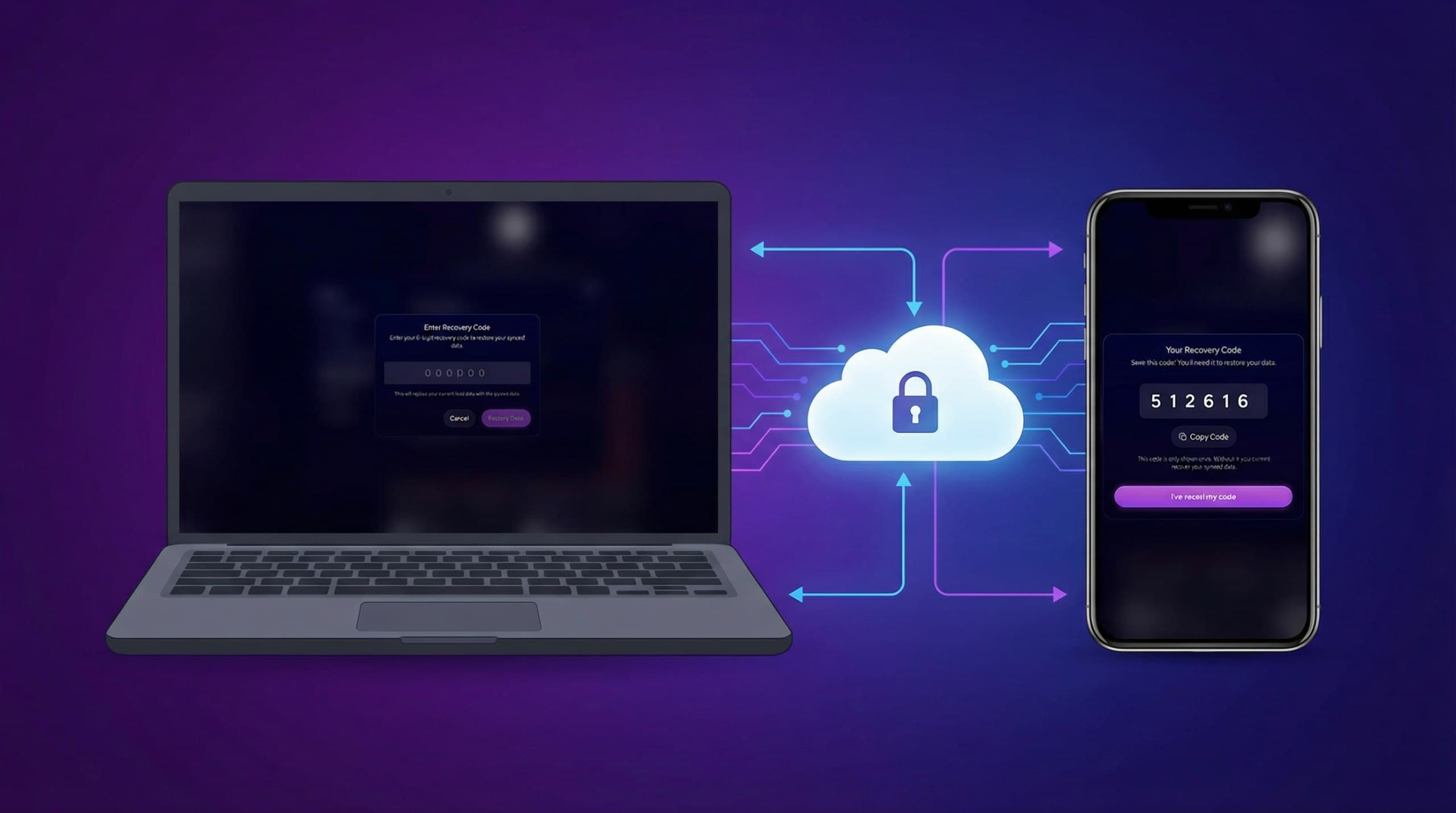
Cloud Sync lets you securely upload your data to the cloud and restore it on another device using a 6-digit recovery code.
Uploading Your Data
- Open the sidebar and tap your profile picture.
- Go to the "Data" tab.
- Tap "Sync to Cloud".
- Wait for the upload to complete.
- A 6-digit recovery code will appear on screen.
- Save this code somewhere safe — it is only shown once and you will need it to restore your data.
Restoring Your Data on Another Device
- Log into your account on the new device.
- Open the sidebar and tap your profile picture.
- Go to the "Data" tab.
- Tap "Accept sync".
- Enter your 6-digit recovery code.
- Your chats, images, characters, and preferences will be restored.
What Gets Synced
- All your chats and messages
- Generated and uploaded images
- Characters
- Your preferences and settings
- Projects
Good to Know
- Your data is encrypted before it leaves your device. No one else can read it.
- The recovery code is required to restore — without it, the data cannot be accessed.
- Syncing again will overwrite any previously synced data in the cloud.
Local Backup
If you prefer to keep a backup file on your own device instead of using the cloud, you can use Local Backup.
Creating a Backup
- Open the sidebar.
- Tap "Backup & Restore Chat History".
- Choose a name for your backup.
- Set a password (at least 8 characters, must include a letter and a number).
- Tap "Download backup".
- A backup file will be saved to your device.
Restoring from a Backup
- Open the sidebar.
- Tap "Backup & Restore Chat History".
- Upload your backup file.
- Enter the password you set when creating the backup.
- Your data will be restored.
Good to Know
- Your backup file is encrypted with your password.
- Keep your password safe — you cannot restore the backup without it.
- You can use this to transfer data between devices by moving the backup file manually (e.g., via email, USB, or cloud storage).
FAQ
Q: Can I use both Cloud Sync and Local Backup?
Yes, they are completely independent. You can use either or both.
Q: What happens if I lose my recovery code?
Unfortunately, your cloud sync data cannot be restored without it. You would need to sync again from the original device.
Q: Will syncing delete my existing chats on the new device?
You may be given the option to replace or merge your data when restoring.
Q: Is my data safe?
Yes. All data is encrypted on your device before being uploaded or saved. No one — including us — can access your chats without your recovery code or backup password.